In June 2026, Microsoft expanded its drafting experience in Outlook with Copilot, adding more precise section‑level rewriting and improved tone controls. This is just one of an ongoing — and rapid— series of Copilot improvements to Outlook. “The space has been moving fast,” says Nick Mears, CVA, MAFF, and founder and managing partner of Caprock Business Consulting.
In a recent NACVA webinar, Mears identified several ways that valuation professionals can take advantage of the integration of Copilot with Outlook to unleash dramatic increases in productivity. “Just using these tricks, I’ve saved on average at least an hour a day,” he says.
Read on to learn about two indispensable email capabilities you can start using now to add more time to your days.
Drafting Emails in Your Voice
“You can train Outlook to sound like you,” Mears says, which can save you significant time throughout your day. “You use the ‘Draft Instructions’ setting to instruct it on tone, structure, and style.”
When you open a window to compose a new email, click the Copilot icon in the toolbar and open the dropdown menu to access Settings. Click on “Draft Instructions” and toggle “Use custom instructions when drafting email.”
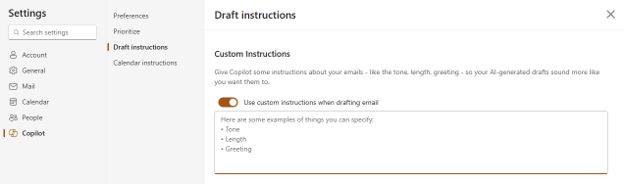
You can enter a simple prompt there, like “Keep emails short and direct, with bullet points where they make sense. Use a friendly tone and sign emails with my first name.” And you needn’t come up with this prompt on your own; you can use the Copilot chat window in Outlook to help you.

For example, you could enter this prompt in the chat window:
“I want to train my Copilot for Outlook to draft emails using a particular tone. Please create a prompt that I should use for my Draft Instructions so my email tone is polite, professional, concise, and authoritative. I don’t want to appear too eager.”
You would then copy and paste the result into the Custom Instructions window.
But Mears recommends going into the full Microsoft 365 (M365) Copilot chat window (on the left side of your screen when you’re in Outlook), as opposed to just the chat window for emails, and entering the following prompt:
“Your goal is to find my tone and preferred method of communication. Draft instructions using Copilot email custom instructions. Review emails that I’ve sent over the past year to draft instructions. I prefer to be polite, professional, genuine, and concise.”
Note: Copilot can’t automatically review your past emails unless you explicitly paste them into the prompt or reference a folder.
Mears says you’ll get a more sophisticated prompt for Draft Instructions this way because the full M365 chat window has access to much more than the email chat window does. It can draw on all M365 content that you have permission to access, such as your emails, calendar, documents, and meetings. “The M365 chat came up with a prompt I could copy and paste into Custom Instructions in less than 10 seconds,” Mears says.
Once the Custom Instructions are set, you’ll click the Copilot icon for a pop-up window when you open a new email and select “what do you want this email to say?”
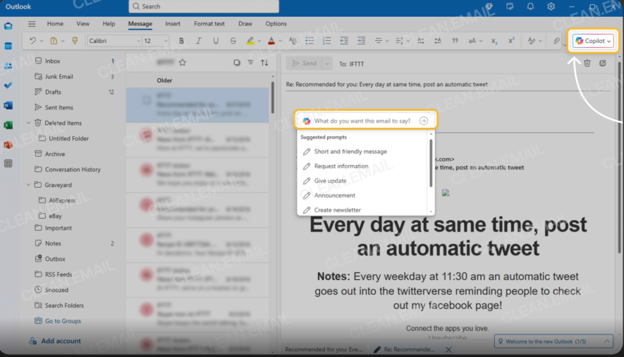
You might enter something like “send Jeremy an email thanking him for today’s presentation.”
Copilot will produce a draft in your voice that you can edit before sending. If you notice you need to make the same edits repeatedly (for example, deleting “Dear” from a greeting), you can adjust the tone and style prompts in Draft Instructions accordingly (“never start an email with ‘Dear’”). will produce a draft in your voice that you can edit before sending. If you notice you need to make the same edits repeatedly (for example, deleting “Dear” from a greeting), you can adjust the tone and style prompts in Draft Instructions accordingly (“never start an email with ‘Dear’”).
Note: Draft Instructions is available only in New Outlook for users licensed for Copilot for M365. Some users may not see the option if their mailbox is on a classic backend or if drafting features are disabled by administrators.
Optimizing Your Email Language
The Rewrite and Adjust capabilities offer additional routes to improve your emails. Mears suggests using them when you draft your own email but want to be cautious about the tone. “They’re helpful if you’re working with a difficult client, trying to get an invoice paid, or having some communication issues. I don’t use it for all of my emails. I use it for those tricky situations that come up every day.”
If you’re pursuing an overdue payment on an invoice and concerned that your draft is too terse, for example, you could instruct Rewrite as follows: “Use my tone in Draft Instructions to rewrite the following email.” Or you could simply select an Adjust option, such as “Make it concise/longer” and “Make it sound casual/professional/confident/enthusiastic.”
Note: In newer Outlook versions, the ability to rewrite and adjust a draft may be available by asking Copilot directly to rewrite or adjust the draft in the style you want, rather than through separate buttons.
Alternatively, you could use Copilot from the start — because Rewrite and Adjust don’t use your full Draft Instructions. “They just use the context, your prompt, and your tone instructions,” Mears says. To take advantage of your full instructions, you must open a new email. You can then select “what do you want this email to say?,” and enter:
“Draft an email to client X saying their invoice is 30 days past due. I want to know why it hasn’t been paid yet. The engagement letter clearly states that invoices are monthly and payable on receipt. Please let me know the status of this payment.”
“If you don’t like the result,” Mears says, “you can prompt Copilot to ‘make it nicer.’”
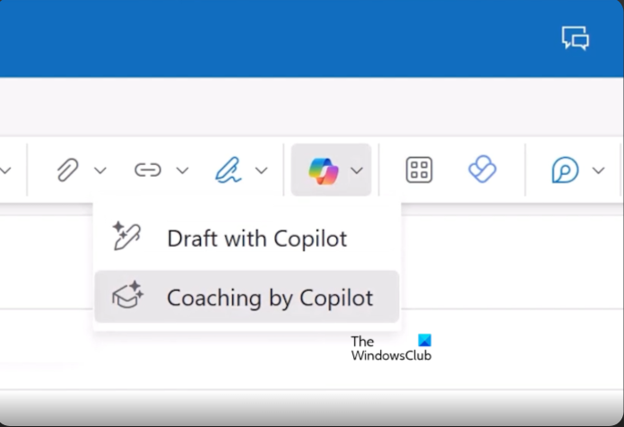
Depending on your Outlook version, you also can receive “coaching” from Copilot after you draft a new email. Click the Copilot icon in the toolbar and select “Coaching by Copilot.” It’ll analyze your draft and provide advice on tone, clarity, sentiment (how the message may be received), professionalism, and other aspects of the draft.
Some Important Caveats
Naturally, many valuation professionals have security concerns when it comes to the idea of integrating AI in their work. No one wants to unintentionally upload confidential client data. That’s why Mears advises valuators to choose Work mode over Web mode in the contexts discussed above.
In Work mode, Copilot chat responses are grounded in work data available to you, such as documents in OneDrive, emails, and other data. Critically, enterprise data protection applies so prompts and responses are protected under the same terms that apply to customer data for users of M365 Copilot.
The Web mode is grounded in data from the public Internet and may not provide the same level of protection for sensitive information. Microsoft warns users to avoid entering sensitive or proprietary work information in prompts when using the Web mode.
Finally, valuation professionals should take the time to review every AI-generated email before hitting Send — particularly communications involving engagement terms, valuation conclusions, pricing, deadlines, or legal matters. Copilot can improve clarity and save time, but professional judgment remains essential.
NACVA members can access Nick Mears’ full webinar “AI for Outlook: Mastering Email Productivity” on its website.

